
Queen Mary Account
Each Student, Staff, and Associate members of Queen Mary's community are given an IT account.
These accounts give you access to email, file storage, and other Queen Mary resources.
Each username is lowercase only: two letters followed by numeric digits, then @qmul.ac.uk. Your IT username will look like an email address, but it is the username you need to use to log in to all Queen Mary systems.
Example: ab123456@qmul.ac.uk
Account for Students
Make sure to use this exact username when logging in to systems such as email, MySIS, QMplus, and others.
When you start at Queen Mary you will receive an email with your temporary password.
You must register your account for Self-service Password Reset (SSPR) and choose a new password as soon as possible.
You will be prompted to provide additional security information, such as a mobile number and a personal email address.
We ask you to set a secure password and to keep it secret from others. Do not let anyone else use your username and password, no matter what reason they give you.
Once you have changed your password, you will be able to access all the services you will need at Queen Mary, such as connecting to the Queen Mary network, email, printing, accessing student service PCs and other essential tools such as QMplus (our online learning environment) and MySIS (the student records system).
Account for Staff
As part of the new starter induction you will either be sent a email pack (to your personal email) from HR or a representative from your department. This will outline your account details. Once you have this you will be able to use your QM device and other applications.
Multi-factor Authentication (MFA)
Multi-factor Authentication (MFA), also referred to as two factor authentication (2FA), adds an extra layer of security when accessing some online services. You may already use some form of MFA for online banking or to access your personal email account.
At Queen Mary, authentication requires a username, password and MFA to grant access.
What MFA options are allowed?
At Queen Mary, it is highly recommended that you use the Microsoft Authenticator app and Passkeys as your authenticator method.
The Microsoft Authenticator App can be found in the Google Play Store or Apple App Store.
Note, Microsoft is retiring text message and phone call MFA by end of January 2027, so these options will no longer be available.
FAQs and Help
What is the Microsoft Authenticator App?
Microsoft Authenticator is a mobile app that enables secure sign-in verification. It supports number matching and passkeys and is available on Apple and Android devices.
What are Passkeys?
Passkeys let you authenticate to websites and apps the same way you unlock your phone, using your fingerprint, face recognition, or even your device PIN. Passkeys are both a passwordless authentication method and an alternative to Multi-Factor Authentication (MFA). The first time you set up a passkey, you will be presented with a QR code to be scanned on your phone for set up. After initial set up, most additional MFA prompts for future log ins will often present as a new QR code or similar MFA prompt.
With Microsoft’s retirement of SMS and voice MFA, passkeys are Queen Mary’s default and preferred method of authentication. However, there are other secure MFA methods that will remain active such as Authenticator app push notifications or 30-second timed codes.
What do I need?
- A smartphone, such as an iPhone or Android phone.
- The Microsoft Authenticator app installed on your phone.
- An Internet connection on your phone.
- Camera access and notifications enabled for Microsoft Authenticator.
For those who are unable to use Passkeys and the Authenticator App:
Queen Mary ITS are aware that in a small number of cases, staff and students may not be able to use Passkeys / the Authenticator App. ITS is therefore developing a solution to support staff and students before Microsoft remove SMS and voice MFA support. Further details will be provided on this page in due course.
How to use Microsoft Authenticator
1. Download & Set up
- On android, open the Play Store and search for “Microsoft Authenticator”
- It is the application provided by Microsoft Corporation and has the icon shown below, or, use the following link
- On Apple, open the App store and search for “Microsoft Authenticator”
- It is the application provided by Microsoft Corporation and has the icon shown below, or, use the following link
- For further support, use the following guidance
.png)
2. On login, after multifactor authentication, you may be presented with the following prompt to set up alternate authentication methods. This is expected and is part of a Microsoft change to the way we login to sites.
.png)
3. On the let's keep your account secure screen select 'Next'
.png)
4. Then under create a passkey to sign into your account select 'Next'
.png)
5. On the 'Choose where to save your Passkey screen' select iPhone, iPad, or Android device, unless you already have an approved security key. You will be presented with a QR code. In the Microsoft Authenticator app, tap the blue button in the bottom right to add a new authentication method. Select the camera and scan the QR.
6. On your phone, hit continue to set up Face or Fingerprint sign in. When done, you will be given a screen similar to the below image. Give your passkey a meaningful name.
.png)
Signing in with passkey
1. The signing in process will be a little different when signing in with a passkey. When signing in, you will be asked to choose a passkey.
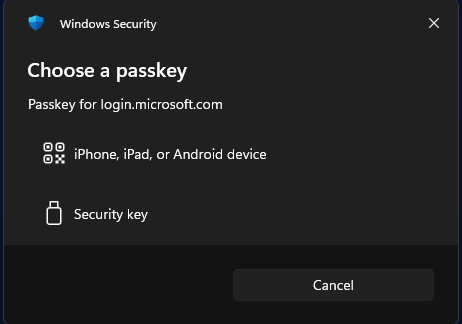
2. Selecting the top option will display a QR code, and your authentication application should switch to camera mode. Scan the QR and complete the biometric check.
Checking Sign In history and changing authentication methods
Everybody should check their sign in history regularly, to ensure nobody is using your account without your knowledge. This is good practice for personal web sites too. You can check your Microsoft account at:
https://mysignins.microsoft.com/
Authentication methods are under My Account -> Security Info. From here you can add or delete authentication methods. You should always delete anything which looks unfamiliar, or that you no longer use, such as SMS.
Protecting your Data - Passwords
- Remember, your password is private, so keep it to yourself.
- Do not store passwords in your web browser
- Do not write your password down
- Never respond to email requests for your password, even if the email appears to come from Queen Mary. These are phishing attempts in order to steal your information.
Advice for Choosing a Password
QMUL’s policy and process for choosing a secure password is:
- The password must be between 12 and 20 characters.
- The password must:
- Contain UPPERCASE characters (A through Z).
- Contain lowercase characters (a through z).
- Numerals (0 through 9).
- The password must NOT
- Contain special characters (%!&@ etc.)
- You will not be able to reuse a password you have used before


